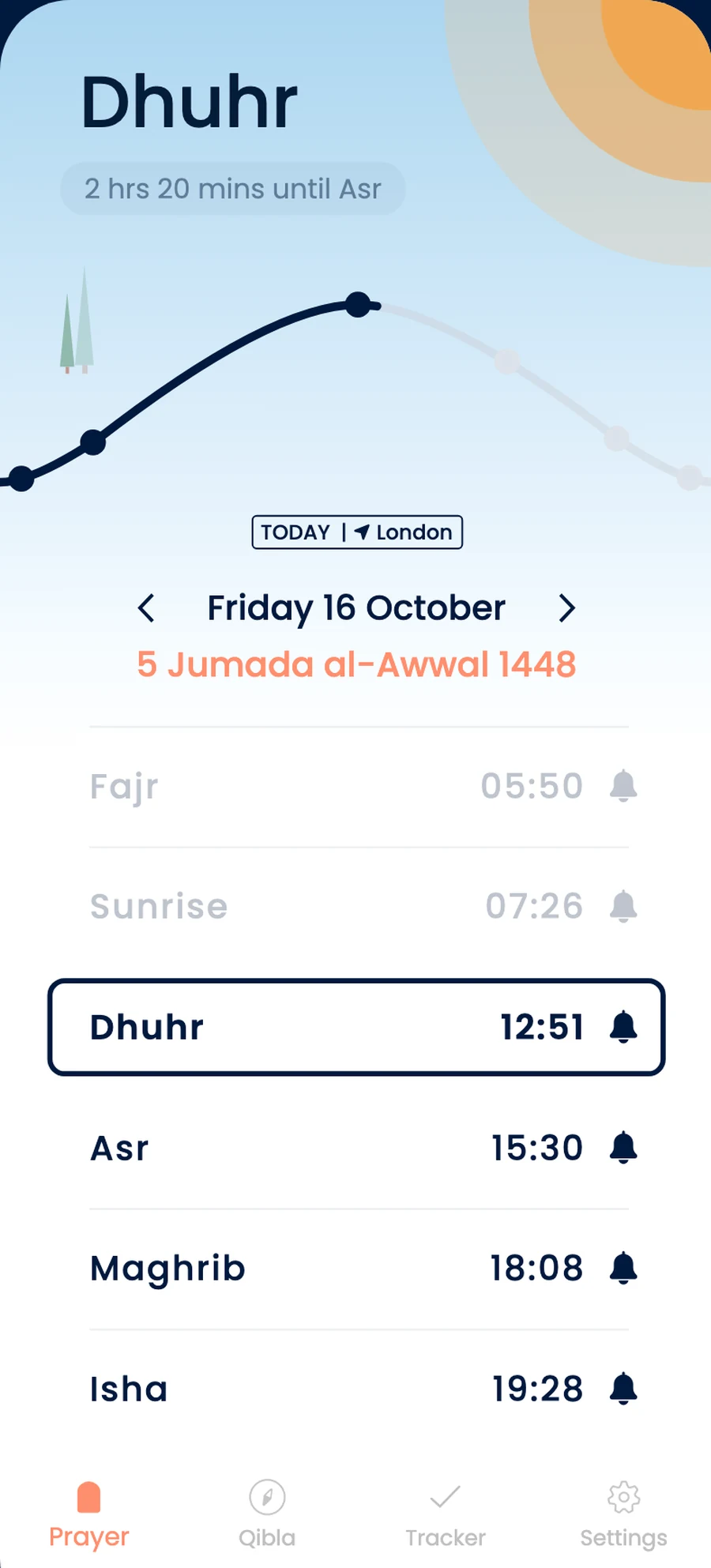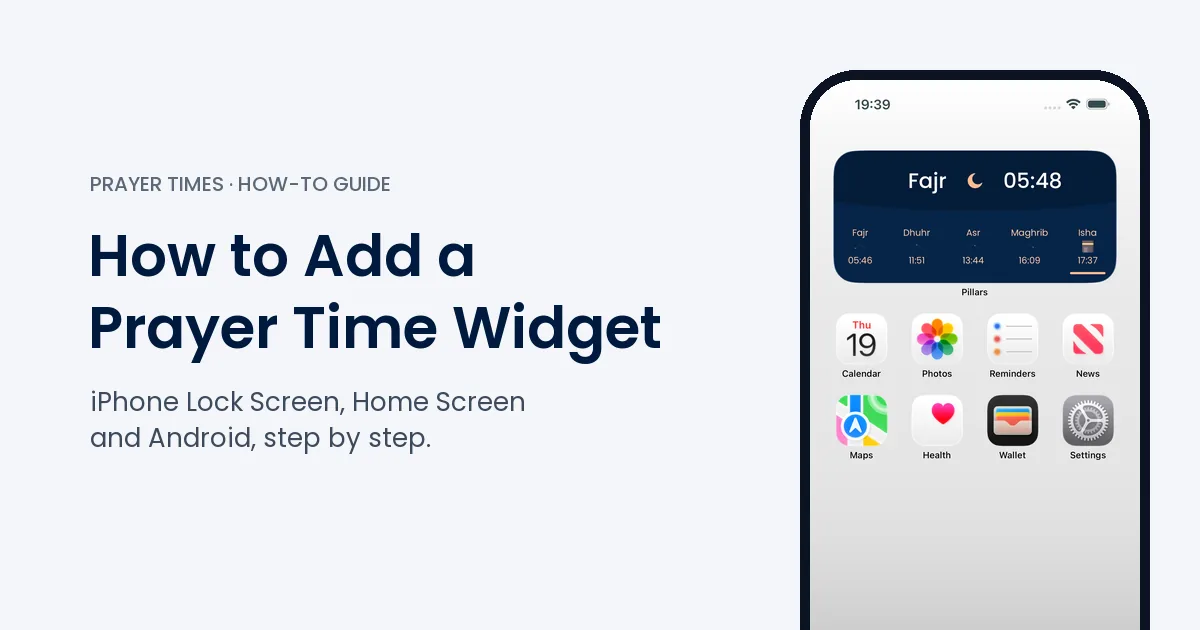
Short answer: install a prayer app such as Pillars, touch and hold your Lock Screen or Home Screen, tap Customise or Edit, then add the widget. It takes under a minute, and the Pillars prayer times widget then keeps the next prayer in view all day. Last updated 19 November 2026 · Steps checked on iOS 26 and Android
How to Add a Prayer Time Widget to Your iPhone Lock Screen (iOS 16 or Later)
Every iPhone on iOS 16 or later can show widgets on the Lock Screen, under the clock and beside the date. Install a prayer app with Lock Screen widgets first, such as Pillars, and open it once so it has your location.
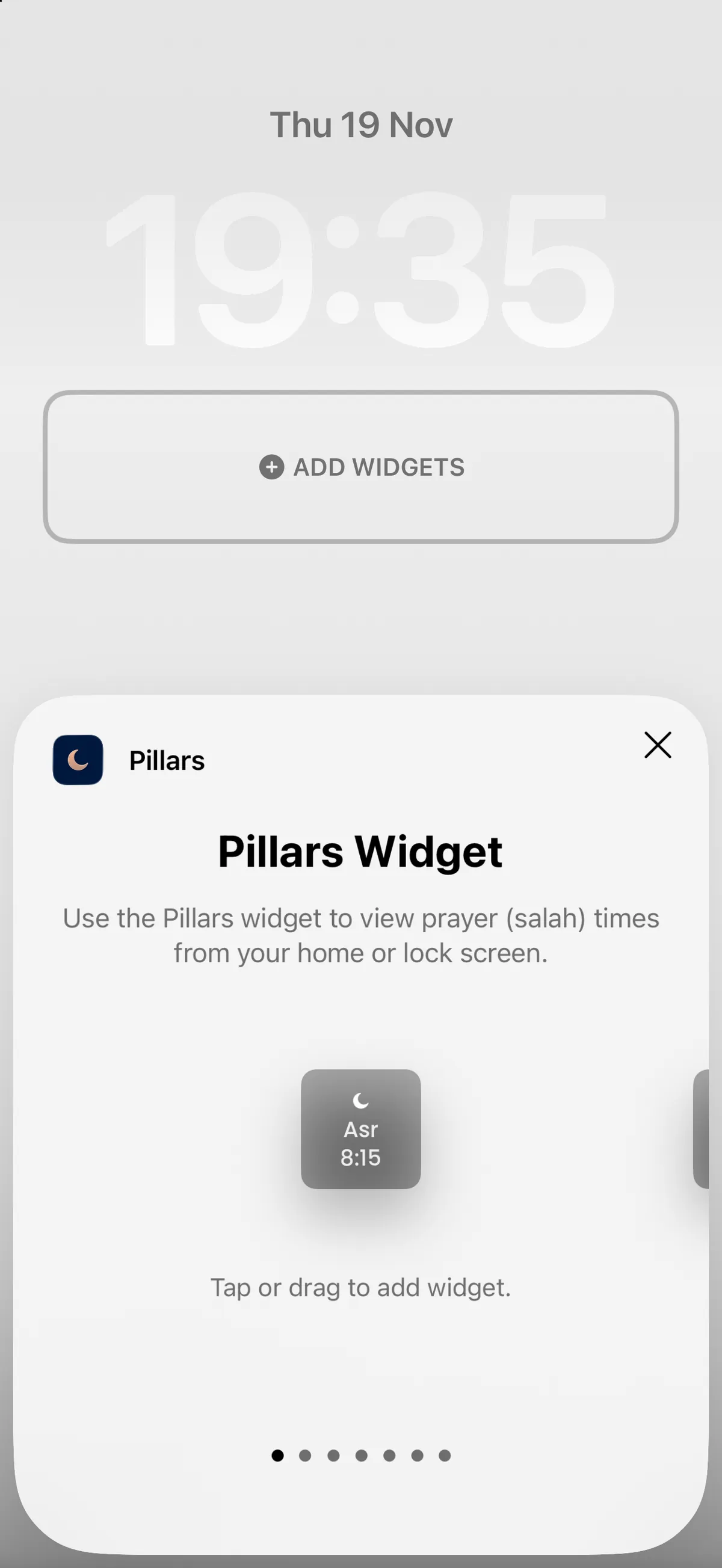
- Touch and hold the Lock Screen. Unlock with Face ID or Touch ID first, but stay on the Lock Screen.
- Tap Customise, then tap the Lock Screen preview (not the Home Screen one).
- Tap Add Widgets, or tap the widgets already under the clock.
- Search for or scroll to Pillars, then tap the widget you want, or drag it into place.
- Tap Done, then tap the screen to go back.
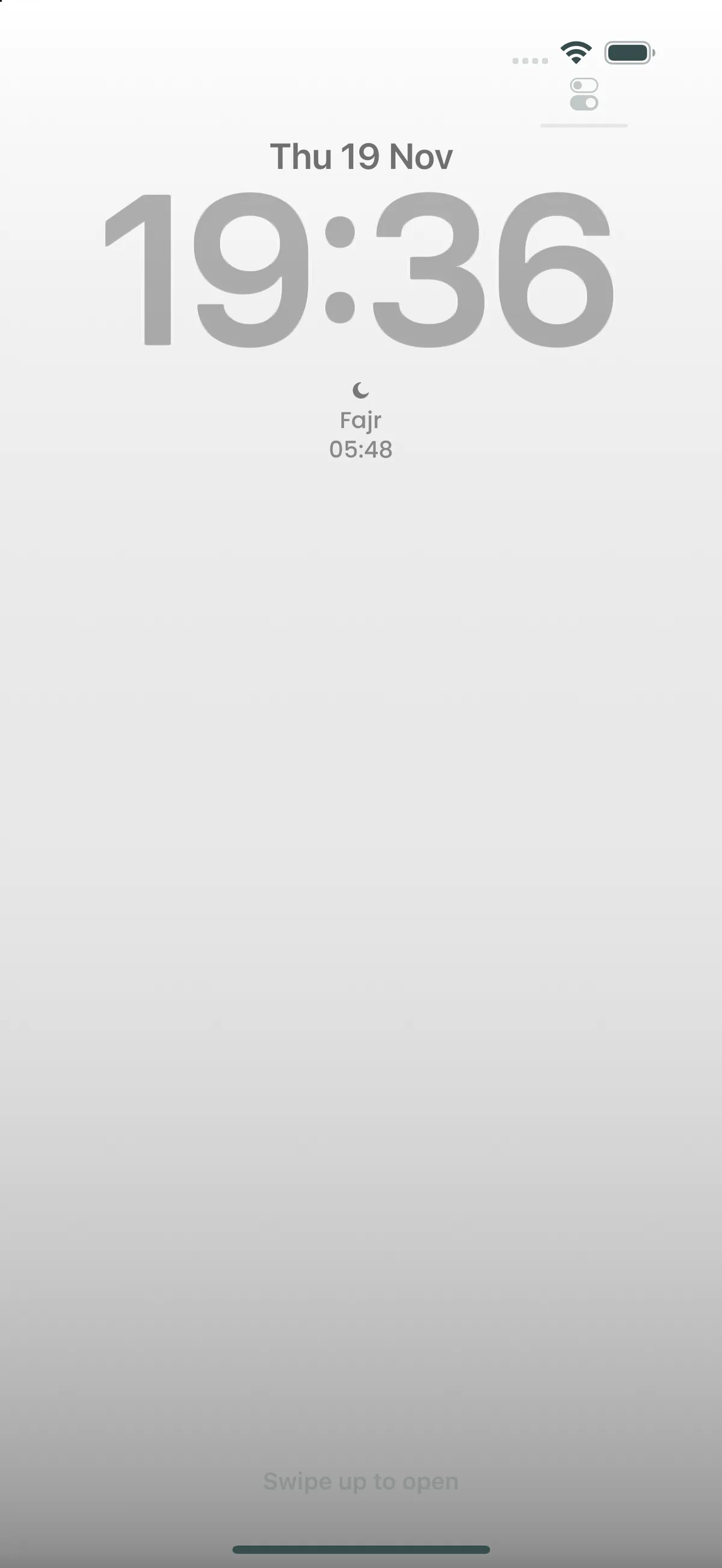
Lock Screen widgets come in three shapes: a circle, a rectangle and one line of text beside the date. Pillars offers all three, so you can show a countdown to the next prayer, the next prayer and its time, or a single line of text.
How to Add a Prayer Time Widget to Your iPhone Home Screen
To put prayer times on your iPhone Home Screen, add the widget from the widget gallery.
- Touch and hold an empty part of the Home Screen until the apps jiggle.
- Tap Edit in the top corner, then tap Add Widget.
- Search for Pillars, tap it, then swipe through the sizes and styles.
- Tap Add Widget, drag it where you want it, then tap Done.
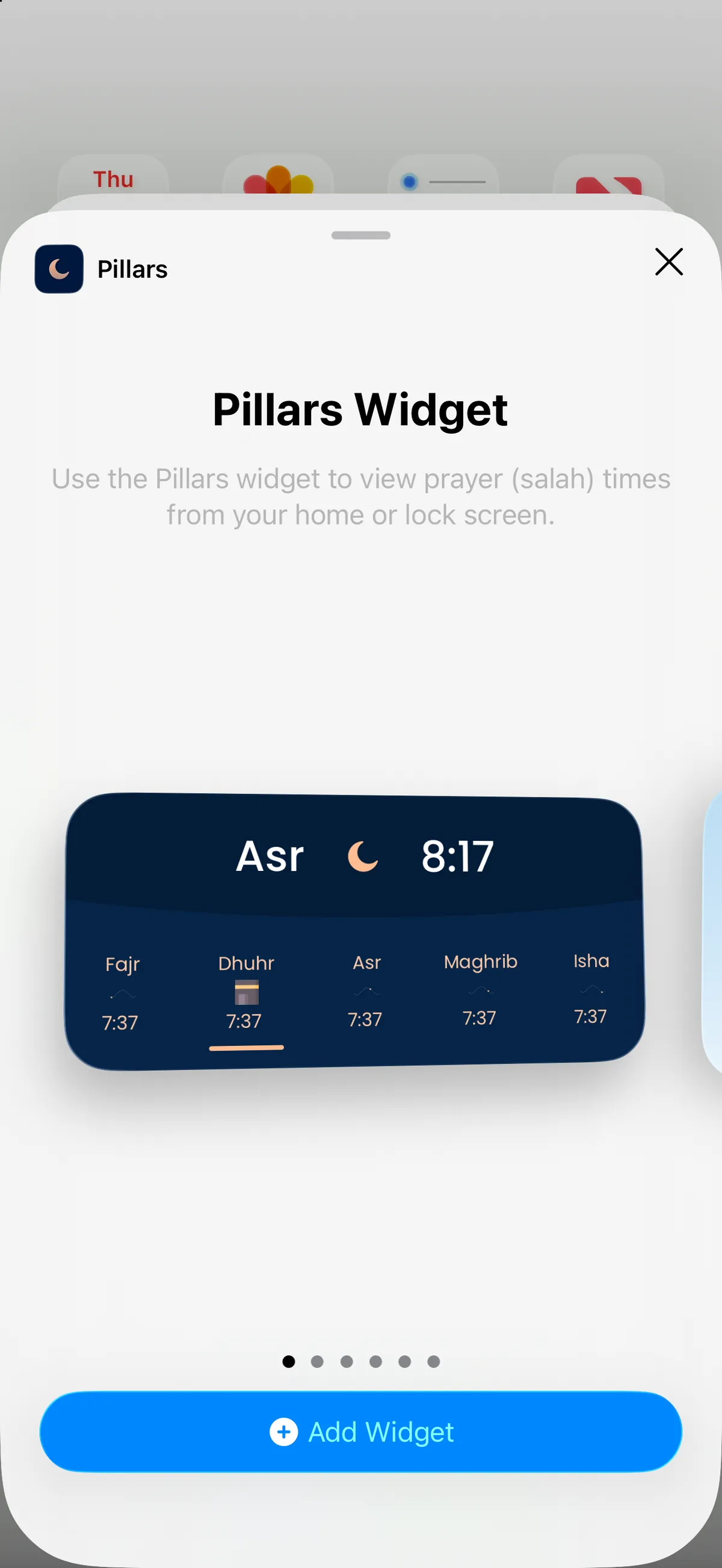
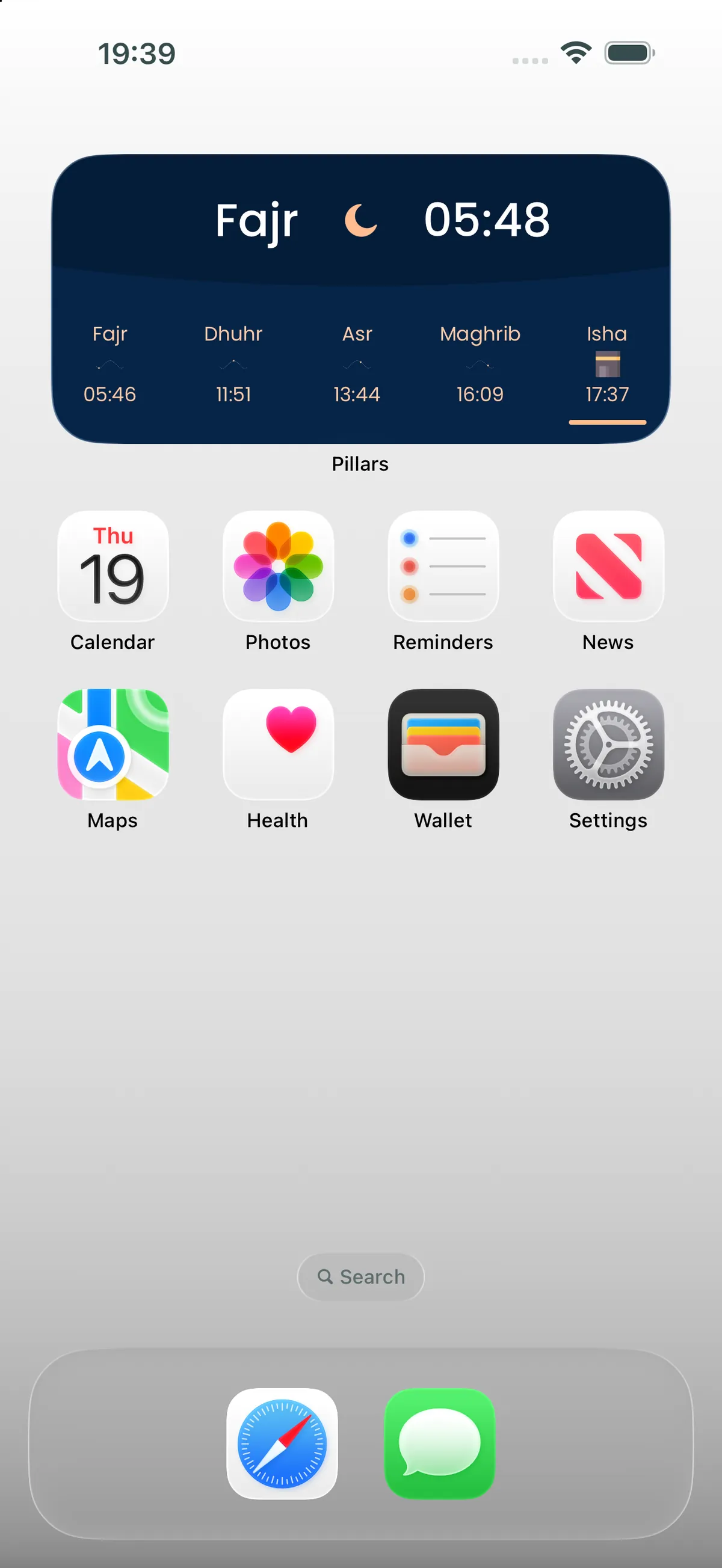
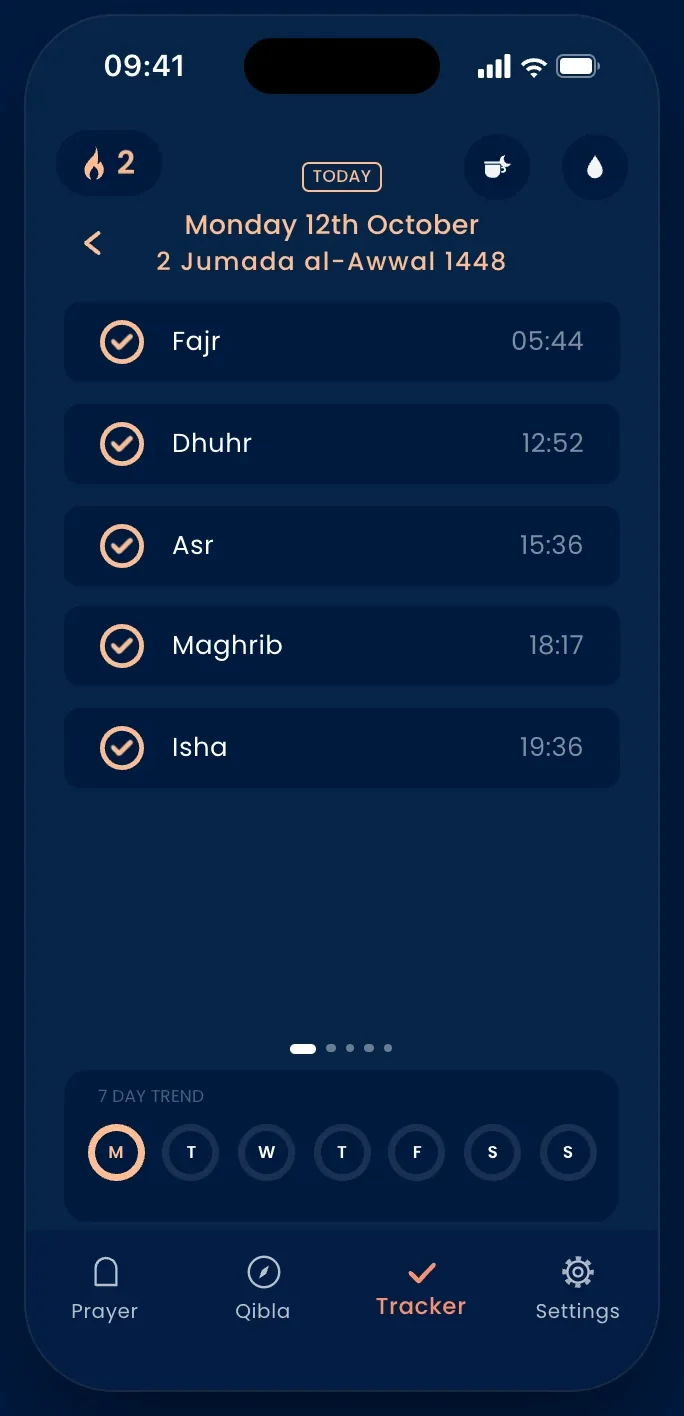
Pillars has small and medium Home Screen widgets on iPhone: today's five prayer times with the next one marked, a countdown, a wave of the day, the Islamic date and a prayer tracker. You can mix several sizes and styles on one screen.
Prayer Times on Apple Watch
On Apple Watch, prayer times sit on your watch face as a complication. Pillars offers a countdown for the current prayer, the next prayer time, or all five times for today.
- Install the Pillars watch app from the Watch app on your iPhone.
- Touch and hold the watch face, then tap Edit.
- Swipe to Complications, tap a slot and choose Pillars.
- Press the Digital Crown to save.
See the Pillars Apple Watch prayer app for every complication.
iPhone Widget Not Showing or Not Updating?
How to Add a Prayer Time Widget on Android
On Android, prayer times live in a Home Screen widget, and the steps are almost the same on every phone. Install Pillars from Google Play and open it once so it has your location.
- Touch and hold an empty space on the Home Screen.
- Tap Widgets.
- Find Pillars in the list, or search for it, and tap it to see its widget.
- Touch and hold the widget, slide it to where you want it, then lift your finger.
- To resize it, touch and hold the widget, lift your finger, then drag the dots on its outline.
On a Google Pixel, Widgets sits in the menu that opens when you touch and hold the Home Screen. On a Samsung Galaxy, touch and hold an empty area, tap Widgets, tap Pillars, then tap Add. Other makers word the menu slightly differently, but touch and hold, then Widgets, is the route on most Android phones.
The Pillars Android widget shows the five daily prayer times and the next prayer, and you can stretch it wider or taller.
Can You Put Prayer Times on the Android Lock Screen?
On most Android phones, not as a widget. Lock screen widgets depend on the phone:
From Google, Samsung and Android Authority, checked 19 November 2026.
Pixel phones on Android 16 QPR2 or later can show widgets on the lock screen: open Settings › Display & touch › Lock screen and turn on Widgets on lock screen. Samsung Galaxy phones on One UI 6.1 or later can show Samsung's pre-installed widgets on the lock screen and Always On Display. The Pillars Android widget is built for the Home Screen. For prayer times on your lock screen today, turn on adhan notifications in Pillars: they appear on the lock screen as each prayer begins.
Android Widget Not Showing or Not Updating?
Add a Ramadan Widget for Suhoor and Iftar Times
For Ramadan, Pillars on iPhone has a Fasting Countdown widget that shows how long is left until suhoor ends or until iftar. Before Fajr it counts down with "Suhoor ends in", through the day it shows "Iftar in", and at Maghrib it shows "Time for Iftar".
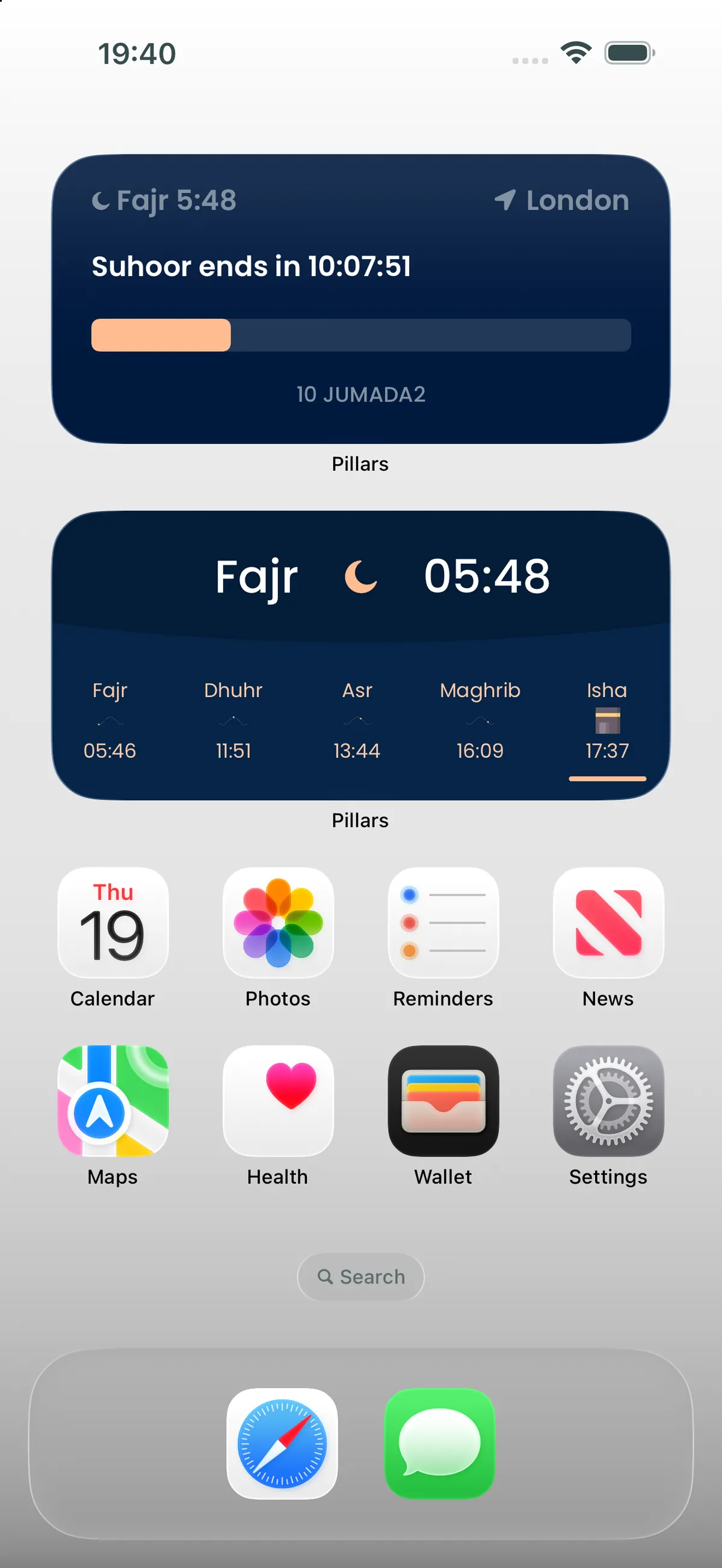
You add it like any other widget: follow the iPhone Lock Screen or Home Screen steps above and choose Fasting Countdown under Pillars. It comes as a medium Home Screen widget and as circular and rectangular Lock Screen widgets. It needs iOS 17 or later; the Pillars Android app has no Ramadan widget, so use its Home Screen widget for Fajr and Maghrib.
How to Add Prayer Times to Your Home Screen Without a Widget
If you'd rather not install an app, you can save a prayer times web page to your Home Screen as an icon. Open today's prayer times and pick your city, such as London prayer times.
- iPhone (Safari): tap Share, scroll down, tap Add to Home Screen, then tap Add.
- Android (Chrome): tap More next to the address bar, tap Install and create shortcut, then tap Add.
An icon only opens the page; it doesn't show the next prayer by itself. A widget is the easier route because it shows the time without a tap.
What a Prayer Time Widget Shows, and Why It Works Offline
A prayer time widget shows the next prayer and how long is left, and the larger sizes show all five times for the day. In Pillars, the widgets read the same times as the app, calculated on your phone for your location and calculation method, so the Lock Screen, Home Screen and app always agree.
Because the times are worked out on the phone, the widget needs no internet once your location is set. It refreshes through the day by itself, switches to the next prayer as soon as one begins, and follows your location when you travel, as long as location access is on. Pillars has no ads and needs no account.
More Questions About Prayer Time Widgets
Do these steps work for other prayer apps?
Yes. Adding a widget is done by your phone, not the app, so the iPhone and Android steps are the same for any prayer app that offers widgets. Only the app's name in the widget list and the widget styles differ.
Which phones and iOS or Android versions does this work on?
iPhone Lock Screen widgets need iOS 16 or later, and Home Screen widgets work on any iPhone that runs Pillars, which needs iOS 15 or later. Most Pillars widget styles need iOS 17. On Android, Pillars needs Android 8.0 or later and has one Home Screen widget.
Why does my widget show the wrong prayer time?
Usually the location or calculation method is wrong. Open Pillars, check that location is allowed and correct, then check the calculation method and Asr setting in prayer time settings. The widget always shows the app's times, so fixing them in the app fixes the widget.
Is there a Ramadan widget for suhoor and iftar times?
Yes, on iPhone. The Pillars Fasting Countdown widget shows how long is left until suhoor ends or until iftar. Add it to your Lock Screen or Home Screen like any widget and choose Fasting Countdown under Pillars. It needs iOS 17 or later.

PillarsPrayer Times & Qibla
Prayer Times on Your Lock Screen
Pillars puts the next prayer and a countdown on your iPhone Lock Screen and Home Screen, and the five daily times on your Android Home Screen. The widgets work offline and follow your location.
Get Pillars on the App Store and Google Play
Keep reading